01 / WHY IT HAPPENS
Why do underwater photos turn blue or green?
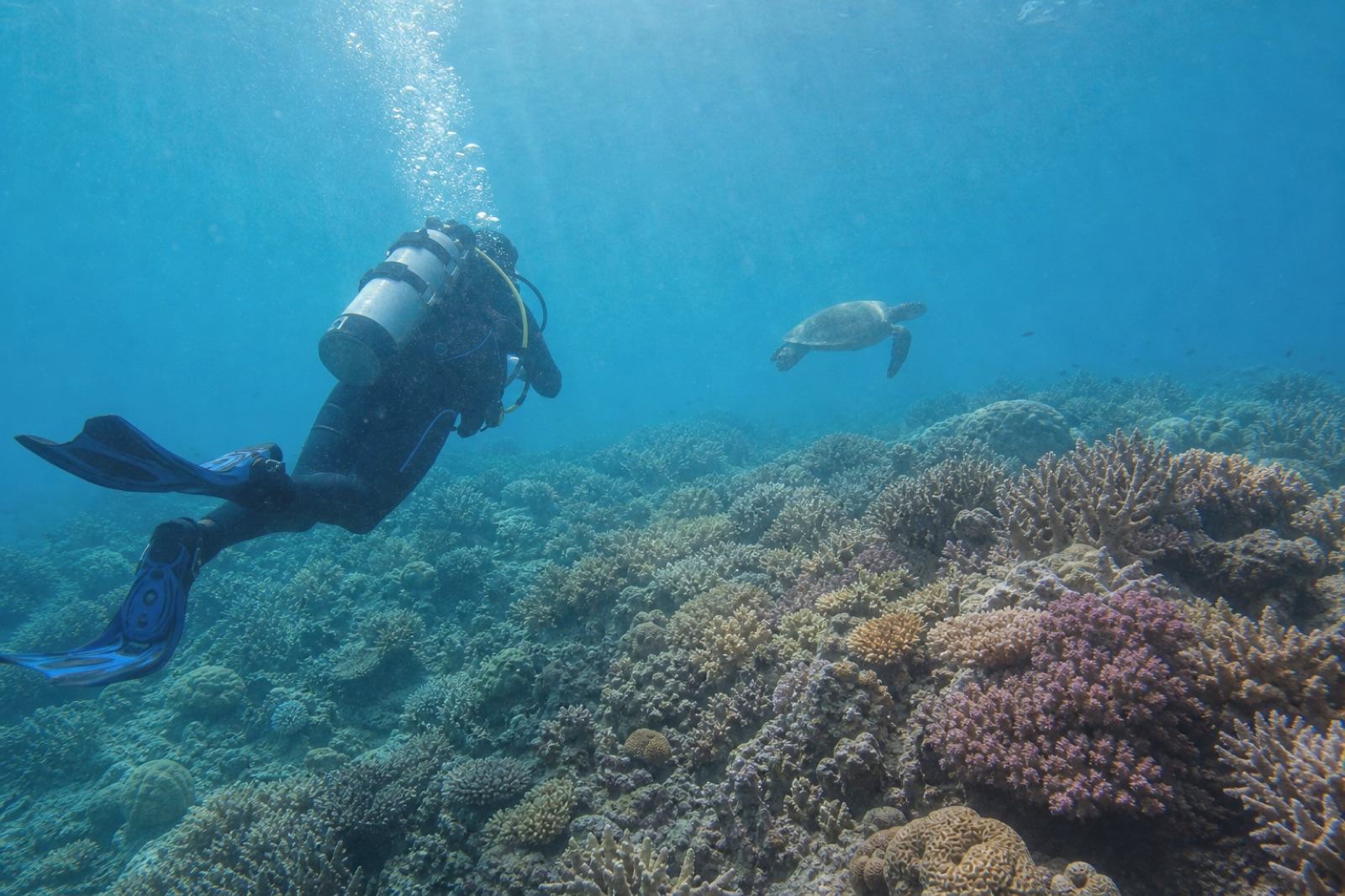
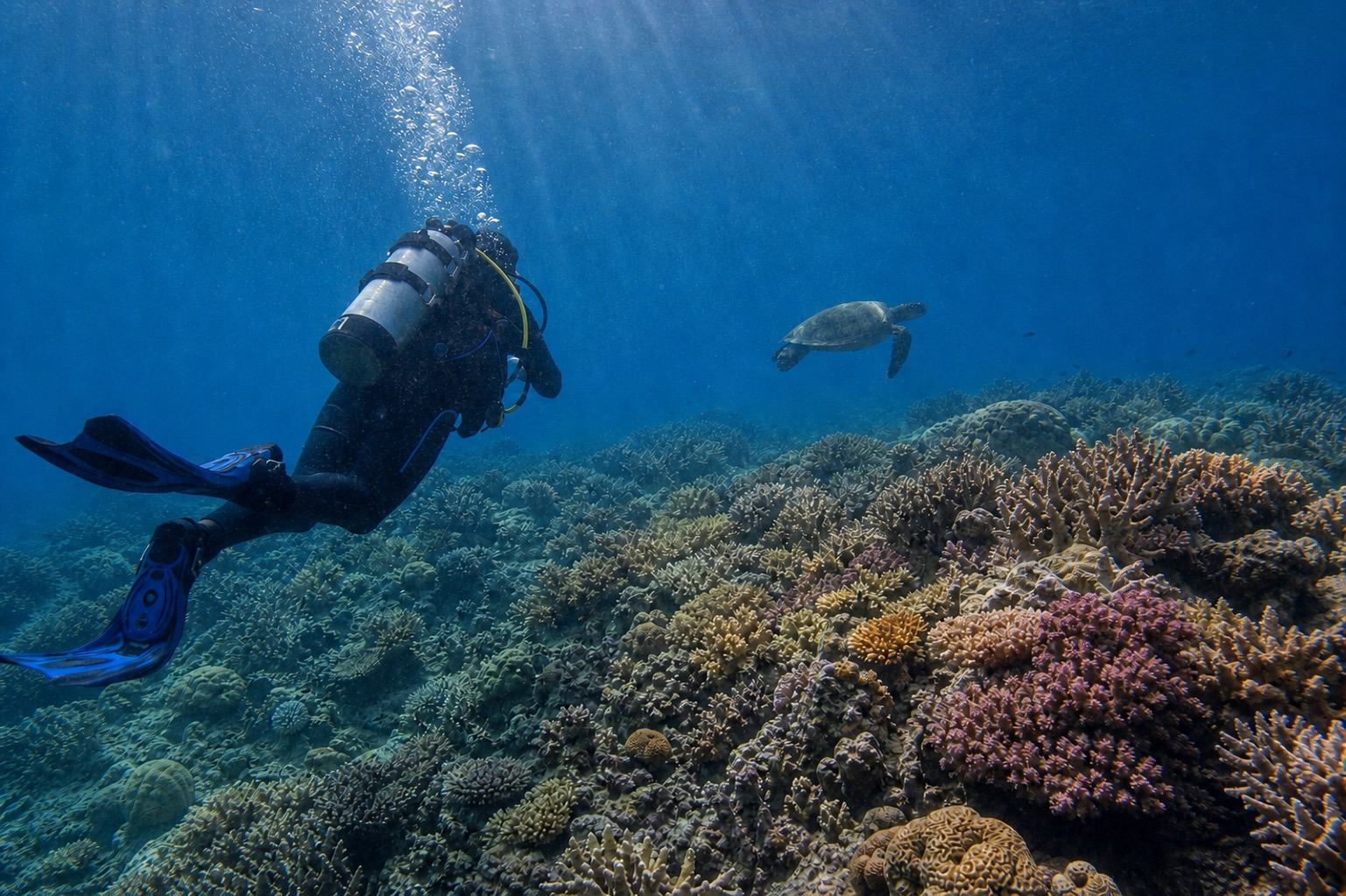
As sunlight travels through water, longer red and orange wavelengths weaken first while blue and green travel farther. The cast changes with depth, water clarity, subject distance, and the direction of available light.
A single preset can therefore push skin or coral toward magenta and flatten the depth of the water. A believable correction brings useful subject color back while preserving the character of the water and the direction of light.
02 / THREE PASSES
Natural color recovery starts with three decisions.
Whether you edit manually or use an AI tool, the checks happen in the same order.Read the color cast first
Check whether the whole frame leans blue or green, or whether only the subject has lost color. Depth and subject distance help indicate how much correction the frame can take.
Rebalance white and restore red carefully
Use neutral areas to guide temperature, then bring the missing red range back gradually. Stop before skin or coral begins to shift toward magenta.
Finish with restrained contrast and clarity
Recover contrast lost to scattered light, then check that particles, noise, and hard edges have not become more prominent than the subject.
03 / KEEP IT BELIEVABLE
A good correction does not erase the ocean.
Use these four checks before saving a result to spot overcorrection quickly.Skin and coral reds have not drifted into magenta
Natural layers of blue or green remain in the background water
Clarity has not made particles and noise unnecessarily prominent
No unfamiliar fine patterns or edges have appeared
04 / QUICK ANSWERS
Underwater color correction: common questions
Can AI recover every original color exactly?
No. There is no way to verify color the sensor did not record. AI enhancement estimates a natural result from the light and subject information that remains, and fine details can change.
Is DeepBlue AI really free?
Enhancing one photo per request stays free and does not require an account. Premium batch enhancement for processing multiple photos at once is being prepared as a separate feature.
Which photo files can I upload?
JPG, PNG, WEBP, and HEIC are supported. The upload form below shows the current size guidance for your browser and file type.
Where do I receive the enhanced photo?
The finished image is not displayed publicly. We send its download link to the email you enter, and the form shows the retention and link-expiry terms before submission.